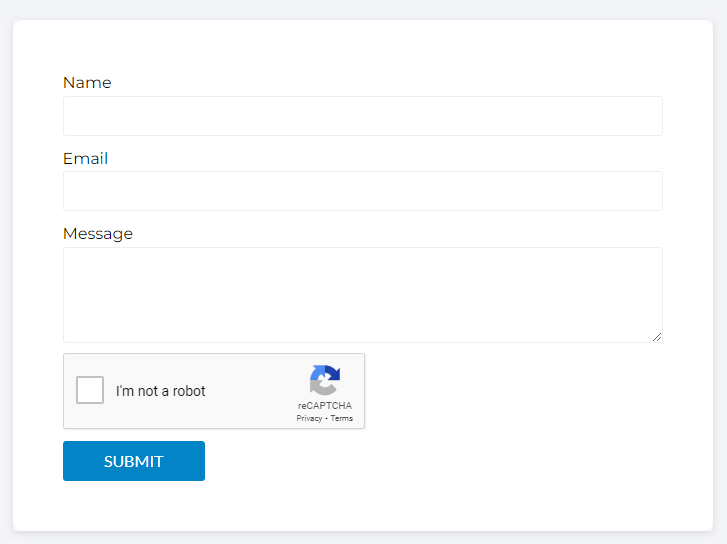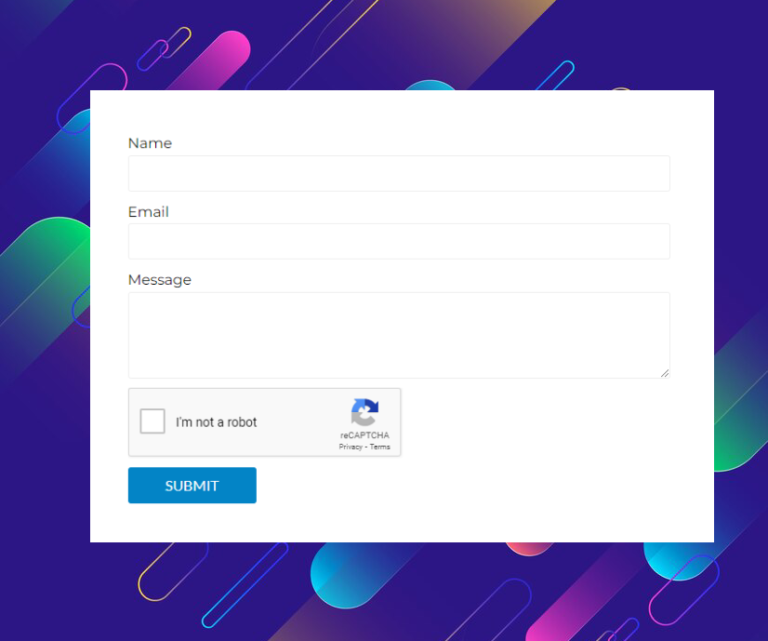
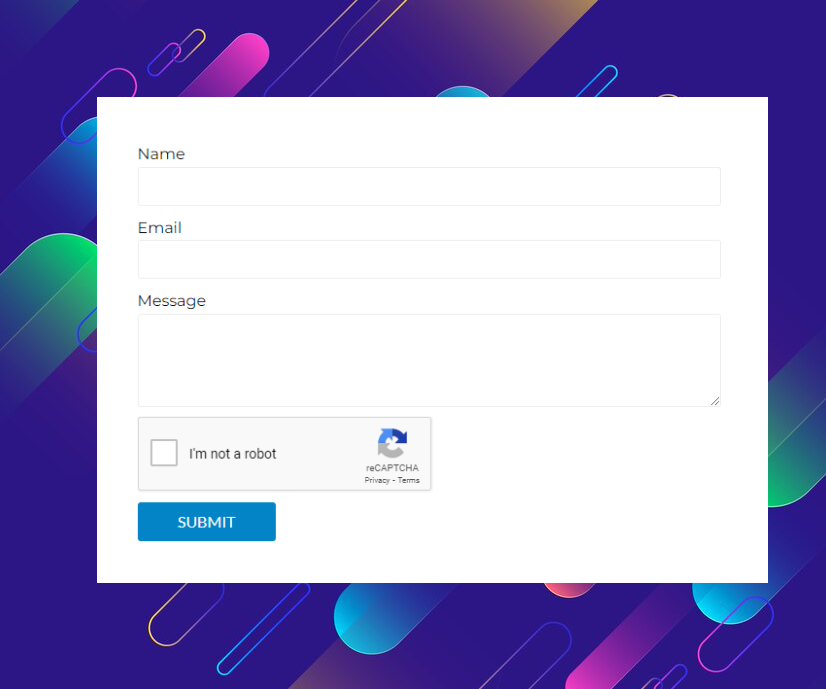
To add reCAPTCHA to an Elementor form and prevent spam, follow these steps:
1. Get reCAPTCHA API Keys
- Go to the Google reCAPTCHA website.
- Click the “Admin Console” button (you’ll need a Google account to log in).
- Register your site by entering your domain and choosing either reCAPTCHA v2 or reCA
- reCAPTCHA v2: The user must interact with a checkbox or challenge.
- reCAPTCHA v3: Invisible, automatically detects if the user is a bot or not.
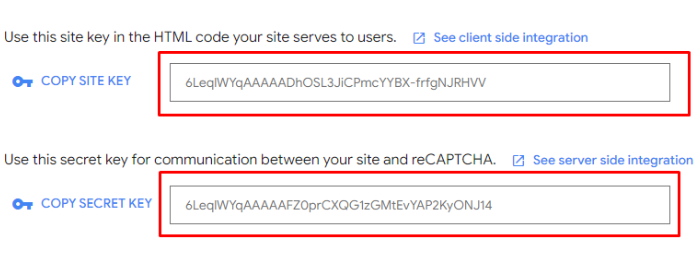
- After registering your site, you’ll get a Site Key and a Secret Key. Save these for the next steps.
2. Add reCAPTCHA to an Elementor Form
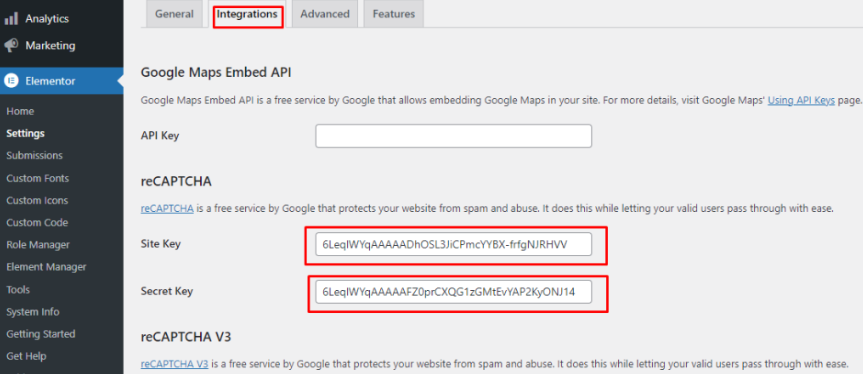
- In your WordPress dashboard, go to Elementor → Settings.
- Open the Integrations tab.
- Enter the Site Key and Secret Key from Google.
- Save your change
3. Publish the Form
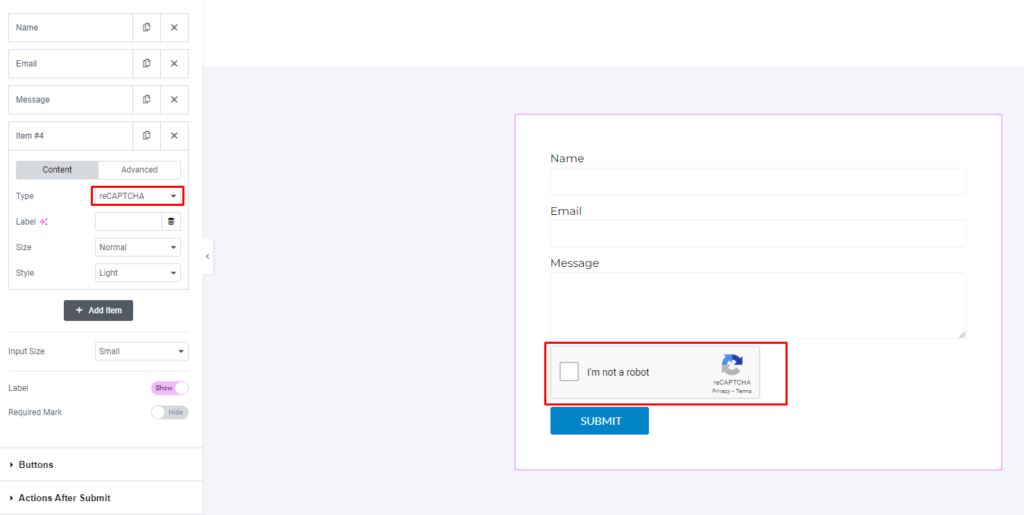
- After configuring reCAPTCHA, publish or update the page containing your form.
- Test the form to ensure the reCAPTCHA is working properly.
5. Verify Setup
- After submitting the form, ensure that reCAPTCHA behaves as expected and prevents any spam.
- By adding reCAPTCHA to your Elementor form, you significantly reduce the risk of spam submissions.